手柄在模拟器中无法使用?5分钟内搞定
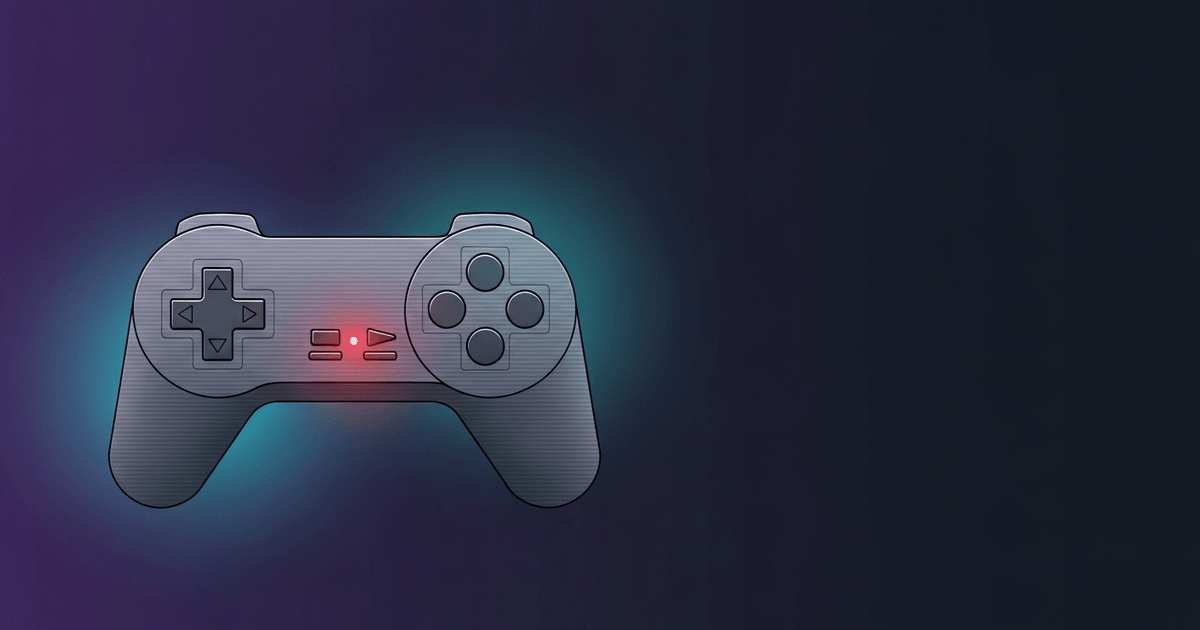
手柄在浏览器模拟器中无法正常工作?本指南将带你逐步排查 Gamepad API 调试、浏览器标志位、模式切换的奇怪问题以及 USB 备用方案,让你尽快投入游戏。
作者: RGS Editorial · 发布: · 更新:
由 RGS Editorial 于 最后审核
为什么你的手柄会突然失灵
当手柄在浏览器中运行的模拟器里无法使用时,问题几乎从来都不出在模拟器本身——通常是以下三种情况之一:操作系统尚未完成设备配对、浏览器还没有收到按键事件来激活 Gamepad API,或者手柄正在以浏览器无法识别的模式进行广播。按照下面的步骤依次排查,大多数情况下五分钟之内就能解决。
浏览器的 Gamepad API(已在 W3C Gamepad 规范中标准化)要求一个明确的用户操作——具体来说,就是在手柄上按下某个按键——浏览器才会将设备信息报告给网页。这一项单独的要求让无数用户栽了跟头,比其他任何问题都更为常见,因此本指南就从这里开始讲起。
Step 1 — 确认手柄已配对
在动浏览器设置之前,先确认手柄已在操作系统层面被识别。在任意浏览器标签页中打开 gamepadtester.net,然后按下手柄上的任意按键。如果页面上出现了手柄卡片,并且摇杆轴或按钮有响应,说明操作系统已正确配对该设备,你可以继续进行 Step 2。如果什么都没有出现,那问题就不是浏览器模拟器的手柄修复问题——而是一个必须先在操作系统层面解决的配对问题。
在 Windows 10 和 11 上,前往「设置 → 蓝牙和其他设备 → 设备」,在「其他设备」下查找你的手柄。如果蓝牙手柄出现在列表中但显示「未连接」,说明配对会话已中断;请移除该设备后重新配对。在 macOS 13 及更高版本上,使用「系统设置 → 蓝牙」进行操作。Linux 用户可以在终端中运行 'bluetoothctl devices' 来列出已配对的硬件设备。
有线 USB 手柄无需任何配对步骤,应当在 gamepadtester.net 中立即显示。如果有线手柄在那里没有显示出来,请尝试换一个 USB 接口(最好是直接连接主板上的接口,而不是通过集线器),然后在 Windows 的设备管理器或 Linux 的 'lsusb' 命令中确认设备是否被枚举。如果操作系统连枚举都做不到,任何浏览器都无法使用该手柄。
Step 2 — 确认浏览器能否识别手柄
假设 gamepadtester.net 已确认操作系统层面的配对没有问题,下一步要确认的是浏览器是否将 Gamepad API 暴露给了模拟器页面。如果 Gamepad API 在某个特定网站上无法工作,而 gamepadtester.net 却运行正常,这强烈暗示要么是某个浏览器标志位被禁用了,要么是模拟器页面通过 Permission-Policy 响应头屏蔽了 'gamepad' 功能。
在 Chrome 以及基于 Chromium 的浏览器(Edge、Brave、Opera)中,将 'chrome://flags/#enable-gamepad' 粘贴到地址栏。如果该标志位在你的版本中存在且被设为「已禁用」,请将其切换为「已启用」并重新启动浏览器。在当前稳定版 Chrome(版本 124 及更高)中,该标志位默认已启用,因此找不到它是正常现象——并不是问题。
Firefox 有一个类似的配置项:打开 'about:config',搜索 'dom.gamepad.enabled',确认其值为 'true'。此外,Firefox 还要求手柄访问必须在安全上下文(HTTPS)下进行,因此通过普通 HTTP 提供的模拟器页面,无论该配置项的值如何,在 Firefox 中都无法识别手柄。
如果模拟器托管在你可以控制或检查的网站上,请打开 DevTools(F12),检查主页面的响应头。类似 'Permissions-Policy: gamepad=()' 这样的响应头会明确屏蔽该来源的所有手柄访问权限。你无法在浏览器端覆盖服务器发送的 Permission-Policy 响应头;必须由网站运营者来移除或放宽该限制。对于本地运行的自托管模拟器,这个响应头通常不会存在。
Gamepad API 中最容易被忽视的要求,就是首次输入规则。规范明确规定:在用户于浏览器窗口聚焦的情况下按下至少一个按键之前,手柄不会暴露给 JavaScript。请先用鼠标点击模拟器的画布区域,然后再按下手柄上的按键。如果没有这个聚焦点击,按键事件可能会被完全忽略。这不是 bug——这是一个有意为之的安全边界,目的是防止第三方脚本在用户不知情的情况下枚举手柄设备。
Step 3 — 手柄模式与 xinput
许多现代手柄会根据开机时按住的模式切换键,以不同方式向系统标识自身。8BitDo Pro 2 是最典型的例子:开机时按住不同的按键,可以将其切换为 Switch 模式、Android 模式、XInput 模式或 macOS 模式。每种模式都会向主机呈现不同的 USB 或 Bluetooth 设备描述符,而浏览器会将这些描述符映射到不同的内部手柄配置文件。如果手柄在模拟器中无法使用,但在 gamepadtester.net 中可以显示,请检查它当前处于哪种模式——不同模式下的摇杆轴数量和按键数量会有所不同。
具体到 8BitDo Pro 2,XInput 模式(连接 USB 数据线后,按住 'X' 键开机)在 Windows 上基于 Chromium 的浏览器中能产生最稳定的效果,因为 XInput 设备通过一套成熟完善的驱动程序栈进行映射。Android 模式(开机时按住 'B' 键)通常是在 Linux 上使用蓝牙连接的最佳选择。Switch 模式是专为 Nintendo Switch 主机设计的,在桌面操作系统上可能会混淆浏览器的手柄映射,有时会导致本应是按键的输入被识别为摇杆轴。
其他带有模式切换功能的手柄包括:Sony DualSense 和 DualShock 4——它们通过 USB 和 Bluetooth 连接时呈现的设备描述符不同;以及 Xbox Core Controller——它需要在 Windows 上通过 Xbox Accessories 应用来应用固件更新,而这些更新会影响 USB 描述符的行为。如果模拟器使用了预置的按键映射方案(在基于 RetroArch 的网页版本中十分常见),意外的设备描述符可能导致即便手柄在技术上已被检测到,所有输入仍然会被错误映射。
- 8BitDo Pro 2: hold 'X' at USB power-on for XInput mode on Windows; hold 'B' at Bluetooth power-on for Android mode on Linux/macOS.
- Sony DualSense: USB connection is more reliable for browser emulators than Bluetooth; DS4Windows is not required on Windows 11 22H2 or later.
- Xbox Core Controller: Bluetooth mode requires the Xbox controller firmware to be current; check via the Xbox Accessories app on Windows.
- Generic third-party pads: if the controller exposes a DirectInput (HID) interface only, Chromium may present it with a non-standard button layout — check gamepadtester.net button indices against the emulator's expected mapping.
- Nintendo Switch Pro Controller: works over USB on all major browsers; Bluetooth support on Windows is inconsistent because Windows does not natively support the Switch HID protocol without third-party drivers.
Bluetooth-specific fixes
Bluetooth controllers introduce a layer of radio and stack complexity that wired connections avoid entirely. The three most common Bluetooth-specific failure modes in browser emulator scenarios are: the controller entering sleep mode mid-session and the browser not re-detecting it on wake; interference from other 2.4 GHz devices (Wi-Fi on the same band, USB 3.0 peripherals radiating noise near the receiver); and operating-system Bluetooth stack quirks that disconnect the HID profile silently.
If the controller disconnects during a session, the Gamepad API will fire a 'gamepaddisconnected' event. Some browser-based emulators listen for this and pause; others do not. Either way, pressing any button on the controller after reconnection should re-trigger the 'gamepadconnected' event and resume detection — but you must click inside the emulator window first to re-establish browser focus, for the same first-input reason described in step 2.
USB Bluetooth adapters that use Bluetooth 4.0 or earlier sometimes have trouble with controllers that advertise Bluetooth 5.0 features. If your PC has a built-in Bluetooth 5.0 adapter but you are also using a USB dongle, Windows may route the controller to the dongle instead of the built-in adapter. Disable the dongle in Device Manager and re-pair to the built-in adapter to test.
On macOS, granting Bluetooth permission to the browser is required since macOS 10.15 (Catalina). Go to System Settings → Privacy & Security → Bluetooth and confirm your browser (Chrome, Firefox, Safari) is listed and enabled. Without this permission, the browser cannot read HID data from a Bluetooth controller even if the OS shows it as connected.
- Keep the controller within 3 metres of the Bluetooth receiver to reduce retransmission latency.
- If possible, pair Bluetooth controllers to a USB Bluetooth dongle positioned in front of the PC rather than a built-in adapter routed through a crowded internal RF environment.
- Disable Bluetooth power management on Windows: Device Manager → Bluetooth adapter → Properties → Power Management → uncheck 'Allow the computer to turn off this device to save power'.
- On Linux with BlueZ, check that the controller is trusted ('trust <MAC>' in bluetoothctl) so it reconnects automatically without a confirmation prompt that could stall the HID handshake.
When all else fails, use USB
If none of the above resolves the gamepad not detected browser problem, a wired USB connection is the most reliable fallback available. USB HID controllers enumerate synchronously, do not have radio interference, do not sleep, and do not require any pairing state. Every browser that implements the Gamepad API supports USB HID controllers without additional configuration.
The trade-off with wired USB is physical: you are tethened to the machine, cable length is limited (standard USB cables run up to 5 metres before signal degradation, though active extension cables can extend this), and frequent connection and disconnection of USB connectors causes mechanical wear on both the cable's micro-USB or USB-C plug and the port on the controller over time.
If your preferred controller does not have a USB cable option — some Bluetooth-only pads do not — a wired alternative that covers NES through PS2 era gaming is the Raphnet USB adapter range, which passes original controllers through to USB HID without input lag introduced by microcontroller polling. These adapters present as standard HID joysticks and are detected by every browser Gamepad API implementation without driver installation on Windows, macOS, or Linux.
For users on Chromebook or ChromeOS, note that the Gamepad API is available but USB device access is gated through the ChromeOS permission system. Plug in the USB controller, then navigate to Settings → Devices and confirm the controller is listed. If you are using a Linux (Crostini) container for emulation rather than a web-based emulator, USB passthrough to the container must be enabled explicitly in ChromeOS Settings → Linux → USB devices.
常见问题
- Why does my controller work on gamepadtester.net but not in the emulator?
- 模拟器页面可能通过 Permissions-Policy HTTP 响应头屏蔽了 Gamepad API 的访问权限,也可能要求你先在游戏画面内单击鼠标,然后再按手柄按键。请先用鼠标点击模拟器屏幕,再按手柄上的一个按键。如果模拟器仍然忽略输入,请在 DevTools 中检查页面的响应头,查找是否存在 'Permissions-Policy: gamepad=()' 条目。
- '按任意键以激活手柄'究竟是什么意思?
- W3C Gamepad API 规范要求:在浏览器窗口获得焦点之后,必须先在手柄上按下一个物理按键,页面的 JavaScript 才能获取到手柄数据。这一机制可防止网站通过已连接的硬件悄无声息地对访客进行指纹识别。正确的操作顺序是:先点击浏览器标签页或模拟器画面,再按手柄上的一个功能键——按照这个顺序操作即可满足该要求。
- 我的 8BitDo 手柄已被识别,但所有按键都对应错误——怎么修复?
- 8BitDo Pro 2 会根据启动模式呈现不同的按键布局。Switch 模式专为 Nintendo Switch 硬件设计,其按键映射与大多数浏览器模拟器的预期不符。请先关闭手柄电源,在 Windows 上通过 USB 连接时按住 'X' 键以进入 XInput 模式;在 Linux 和 macOS 上通过 Bluetooth 开机时按住 'B' 键以进入 Android 模式。切换模式后,请在 gamepadtester.net 上重新确认新的按键索引是否正确。
- 浏览器模拟器的手柄修复方法在 Firefox 和 Chrome 上有何不同?
- 有两处值得注意的差异。Firefox 要求模拟器页面必须通过 HTTPS 提供服务;无论其他设置如何,手柄在 HTTP 页面上都无法被识别。此外,Firefox 使用 'about:config' 而非 'chrome://flags' 来启用或检查手柄支持——相关的首选项为 'dom.gamepad.enabled'。Chrome 的 Gamepad API 实现总体上与 Firefox 兼容,但 Chrome 历来更频繁地更新其手柄映射数据库。
- 我可以不借助额外软件,直接在浏览器模拟器中使用 PS4 或 PS5 手柄吗?
- 通过 USB 连接时,在 Windows 10 和 11、macOS 12 及更高版本以及大多数 Linux 发行版上,DualShock 4 和 DualSense 均可被 Chromium 和 Firefox 识别为标准 HID 手柄,无需任何额外软件。通过 Bluetooth 连接时,结果则因情况而异——Chrome 通过其内部 HID 描述符映射原生支持 DualShock 4,但部分模拟器页面仍可能错误映射触控板点击或 L3/R3 轴。DS4Windows 是一款仅限 Windows 的第三方工具,它能将手柄重新呈现为 XInput 设备,可以解决映射问题,代价是需要运行一个后台进程。
- 有没有办法在不访问外部网站的情况下测试 Gamepad API 的支持情况?
- 有。打开浏览器的开发者控制台(F12 → Console 标签页),输入 'navigator.getGamepads()'。先按一下手柄上的按键,然后再次执行该命令。如果 Gamepad API 工作正常,你将看到一个包含 Gamepad 对象的数组,其中的值不为 null;如果数组在按键后仍只包含 null 或为空,则说明浏览器没有将该设备暴露给页面上下文。此测试适用于任何通过 HTTPS 提供服务的页面。
相关指南
Emulator save lost: can you recover your progress?
IndexedDB saves vanish easily. Here's what happened and what you can actually do.
How to play Sega Genesis online — Mega Drive in your browser
Run Mega Drive games in your browser — no download, no install required.
如何在浏览器中玩复古游戏
在浏览器标签页中玩 NES、SNES、Genesis、GBA 等游戏的快速方式。
复古游戏模拟器合法吗?简明指南
模拟器是合法的。ROM 是灰色地带。以下是如何在不涉及法律术语的情况下思考这个问题。