How to play Sega Genesis online — Mega Drive in your browser
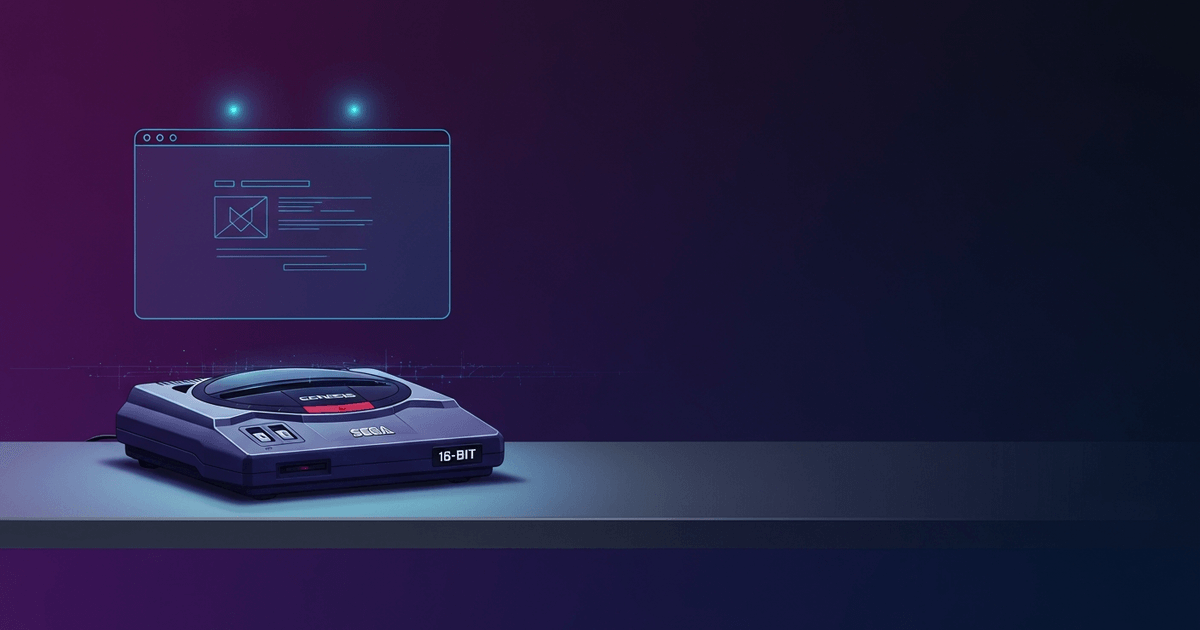
Play Sega Genesis online for free with no download using EmulatorJS and the Genesis Plus GX core. Covers 6-button pads, PAL/NTSC quirks, and region differences.
By RGS Editorial · Published: · Updated:
Last reviewed by RGS Editorial on
Genesis and Mega Drive — same console
You can play Sega Genesis online for free, directly in your browser, with no download required. RGS uses the Genesis Plus GX core inside EmulatorJS to run the same ROM on any desktop or mobile browser. Whether the label on your cartridge says 'Genesis' (North America) or 'Mega Drive' (Europe, Japan, Brazil, Australia), the hardware is the same Motorola 68000-based system released by Sega in 1988 in Japan and 1989 in North America.
Sega sold the console as the Mega Drive everywhere except North America, where the Genesis name was used to avoid a trademark conflict. The two names refer to identical core hardware, so a guide that says 'Mega Drive emulator browser' and one that says 'Genesis emulator' are describing the same emulation target. The only real differences between regional hardware variants are the lockout circuitry, the cartridge slot shape, and the video output standard — all of which are handled in software by Genesis Plus GX.
The 32X add-on and the Sega CD (Mega CD outside North America) are separate platforms with different CPU configurations and different core requirements. Neither runs on the standard Genesis Plus GX core used here. A companion guide covering those platforms is planned — watch the how-to index for it.
Quick start — load a game now
Playing genesis online free on RGS takes under a minute from a cold start. Every game listing on the site embeds the EmulatorJS player pre-configured with the Genesis Plus GX core; you do not need to select a core or configure BIOS files for most games. Click the player, wait for the ROM to load (load times depend on your connection — most ROMs are under 4 MB), and the game starts.
- Open any Genesis or Mega Drive game page on RGS and click the play button in the center of the embedded player.
- Wait for the progress bar to reach 100%; the emulator initializes automatically once the ROM is fully buffered.
- Press Enter or tap the on-screen Start button to get past the title screen — the default keyboard mapping binds Enter to Start.
- If the game does not respond to your keyboard, click once inside the player canvas to give it focus, then try again.
- To use a USB or Bluetooth gamepad, connect it before clicking the player; EmulatorJS reads gamepads through the Web Gamepad API supported in Chrome 21+, Firefox 29+, and Edge 12+.
The on-screen overlay controls work on touchscreen devices but introduce input latency compared to a physical pad — typically 1-2 frames on a mid-range phone. For action games that require precise timing, a wired USB controller is the most reliable option. Bluetooth pads work but can add variable latency depending on your device's Bluetooth stack.
Region quirks — NTSC, PAL, and NTSC-J
The Genesis and Mega Drive shipped in three regional variants: NTSC-U (North America, 60 Hz), NTSC-J (Japan, 60 Hz), and PAL (Europe, Australia, Brazil, 50 Hz). The core hardware clock differs slightly between NTSC and PAL units, which affects game speed. Genesis Plus GX emulates the region setting in software — the player defaults to NTSC-U for Genesis ROMs and auto-detects for Mega Drive ROMs based on the ROM header.
Japanese Mega Drive ROMs (NTSC-J) generally run at the same 60 Hz rate as North American Genesis ROMs, so speed is not an issue when switching between those two regions. The practical difference is language: Japanese-region ROMs display Japanese text, and a small number of titles were Japan-exclusive releases that never received localized versions. If you are loading a Japanese ROM and see garbled characters, the ROM may require a Japanese BIOS — check the individual game page on RGS for BIOS notes.
PAL ROMs present a more significant issue. PAL Mega Drive hardware ran the main 68000 CPU at approximately 7.61 MHz versus the NTSC rate of approximately 7.67 MHz, and the video output ran at 50 Hz instead of 60 Hz. Many PAL conversions were not speed-corrected, meaning the game runs about 17% slower than the developer intended. Genesis Plus GX can emulate the PAL timing accurately — loading a PAL ROM in PAL region mode will reproduce this slower speed. If you want to experience the game at its intended pace, load the NTSC-J or NTSC-U version instead.
- NTSC-U (Genesis): 60 Hz, ~7.67 MHz CPU — standard North American speed.
- NTSC-J (Mega Drive Japan): 60 Hz, ~7.67 MHz CPU — same speed as NTSC-U; language differences only.
- PAL (Mega Drive Europe/Australia): 50 Hz, ~7.61 MHz CPU — runs slower than NTSC unless the game includes speed correction code.
- Region lock: real hardware used cartridge-slot notches and software checks; Genesis Plus GX bypasses both by default.
Why some games run faster online
If a game feels faster than you remember from a PAL cartridge on a real TV, you are almost certainly experiencing the difference between PAL 50 Hz timing and NTSC 60 Hz timing. RGS defaults to NTSC-U for most Genesis ROMs. A game that ran at 50 frames per second on a PAL Mega Drive will run at 60 frames per second in NTSC mode — that is a 20% increase in frame rate, which directly translates to faster character movement, music pitch, and scroll speed.
The opposite can also happen. If you load a PAL ROM and the player auto-detects PAL region mode, the game will run at 50 Hz even on your 60 Hz monitor. Modern displays handle this by either duplicating frames or introducing judder. The subjective result is a slightly uneven or sluggish feel that is not an emulation error — it is accurate PAL behavior. Switching the region to NTSC-U in the player settings will give you 60 Hz output for any ROM.
There is a secondary source of speed differences unrelated to region: browser tab throttling. Chromium-based browsers throttle JavaScript timers in background tabs to approximately 1 Hz. If you switch away from the RGS tab while a game is running, EmulatorJS may lag behind real time and then rush to catch up when the tab regains focus. Keep the game tab in the foreground during play to avoid this. Firefox's behavior is similar; the Web Gamepad API also pauses polling in background tabs in most browsers.
FAQ
- Can I play Sega Genesis games online without downloading anything?
- Yes. RGS streams ROMs directly to the EmulatorJS player running in your browser — sega online no download is the intended experience. No plugin, app, or file installation is needed. The only requirement is a browser that supports WebAssembly, which covers all major browsers released after 2017.
- Does the Genesis Plus GX core support Sega CD or 32X games?
- No. The Sega CD (Mega CD) and 32X require separate cores with different configuration and, in the case of Sega CD, a BIOS file. These platforms are not covered in this guide. A dedicated companion guide for Sega CD and 32X emulation is planned for a future RGS publication.
- Why does Street Fighter II play differently without 6-button mode?
- Street Fighter II: Special Champion Edition on the Genesis detects whether a 6-button pad is connected. Without it, the game maps three attack strengths (light, medium, hard) across three buttons instead of six, changing how special move shortcuts work. Enabling 6-button mode in the RGS player overlay restores the intended control scheme.
- What is the difference between a Genesis ROM and a Mega Drive ROM?
- They are the same file format (.bin or .md) running on the same emulated hardware. The naming difference is purely regional — Sega called the console Genesis in North America and Mega Drive elsewhere. A ROM labeled 'Mega Drive' will load and run in any Genesis Plus GX instance without conversion.
- Why does my PAL Mega Drive game run slower than I expected?
- PAL Mega Drive hardware ran at 50 Hz, and many PAL game conversions were not speed-corrected. If Genesis Plus GX auto-detects a PAL ROM and sets the region accordingly, it accurately reproduces that slower 50 Hz timing. Switching the region setting to NTSC-U in the player will run the same ROM at 60 Hz.
- Can I use a USB controller to play Genesis games in the browser?
- Yes, provided your browser supports the Web Gamepad API — Chrome 21+, Firefox 29+, and Edge 12+ all do. Connect the controller before clicking the player canvas, and EmulatorJS will detect it automatically. Wired USB pads have lower latency than Bluetooth options; Bluetooth latency varies by device and can affect timing in fast-paced games.
Related guides
How to play retro games in your browser
The fast way to play NES, SNES, Genesis, GBA, and more — all in a browser tab.
Emulator save lost: can you recover your progress?
IndexedDB saves vanish easily. Here's what happened and what you can actually do.
Controller not working in emulator? Fix it in 5 minutes
Step-by-step fixes when your gamepad goes undetected in a browser emulator.
Is retro game emulation legal? A plain-English guide
Emulators are legal. ROMs are the gray area. Here’s how to think about it without the legalese.