How to play retro games in your browser

A complete guide to playing retro console games directly in your browser using WebAssembly emulation — no downloads, no installs, no setup.
By RGS Editorial · Published: · Updated:
Last reviewed by RGS Editorial on
Why browser emulation works in 2026
Modern browsers ship with WebAssembly, an instruction set that runs at near-native speed. That's enough horsepower to emulate consoles up through the Game Boy Advance and Sega Saturn comfortably on a mid-range laptop, and even a phone handles 8-bit and 16-bit systems without breaking a sweat. There's no plugin to install, no Java, no Flash — the browser is the runtime.
The two engines that matter today are EmulatorJS (a fork of libretro cores ) and a handful of custom WebAssembly ports. Most browser-based retro game sites — including this one — wire one or both into a thin React or vanilla-JS shell, hand it a ROM file , and let the user play.
Step 1 — Pick a game
Browse the catalog by platform (NES, SNES, Genesis, GBA, etc.) or by category (action, RPG, puzzle, fighting). Most browser libraries include 1,000-3,000 titles spanning the cartridge era; ours has 2,074 at last count. Look for the platform badge on each card to confirm compatibility — anything labeled NES/SNES/GB/GBA/MD/MS/PCE will run smoothly on a phone, while N64/PS1/Saturn need a desktop browser to maintain 60 FPS.
Step 2 — Click Play
Press the Play button on the game page. Three things happen behind the scenes: the emulator core (a 1-3 MB WebAssembly module) downloads, the ROM downloads from a public archive, and the audio context initializes. Total cold-start time is typically 5-15 seconds depending on ROM size and your connection. Once the emulator boots, save states and screenshot capture become available.
Step 3 — Use the on-screen controls or your keyboard
Default keyboard mappings:
- Arrow keys — D-pad / movement
- Z — A button (action / confirm)
- X — B button (cancel / secondary action)
- A / S — X / Y on systems with four face buttons
- Enter — Start
- Shift — Select
- F2 — Save state
- F4 — Load state
On mobile, on-screen touch controls overlay the screen automatically. For the best experience, plug a USB or Bluetooth controller into your computer or phone — most browsers expose the Gamepad API and the emulator picks it up automatically with no extra configuration.
Pro tips
- Use save states liberally — they’re free, and they’re the single biggest reason browser emulation feels better than the original hardware ever did.
- If audio glitches, lower your tab count. WebAssembly competes for the same audio worklet thread as other tabs.
- Fullscreen (F11 on most browsers) eliminates the window chrome and gives you the cleanest experience on a laptop.
- For longest battery life on a laptop, prefer 8-bit and 16-bit systems — they idle at <5% CPU.
Featured games
Real, browser-playable examples that pair with this guide.


FAQ
- Do I need to install anything?
- No. Browser emulation runs entirely in WebAssembly inside the page — no plugins, no extensions, no app downloads.
- Will it work on my phone?
- Yes for 8-bit and 16-bit systems (NES, SNES, Genesis, GB, GBA). N64 and PS1 require a recent flagship phone or a desktop browser to hold 60 FPS.
- Can I save my progress?
- Yes. Save states are stored in your browser’s local storage (IndexedDB) and persist across sessions on the same device. They are not synced across devices.
- Is browser emulation legal?
- The emulator software itself is legal in nearly every jurisdiction. ROM legality is more nuanced — see our dedicated guide on emulation legality for the full picture.
Related guides
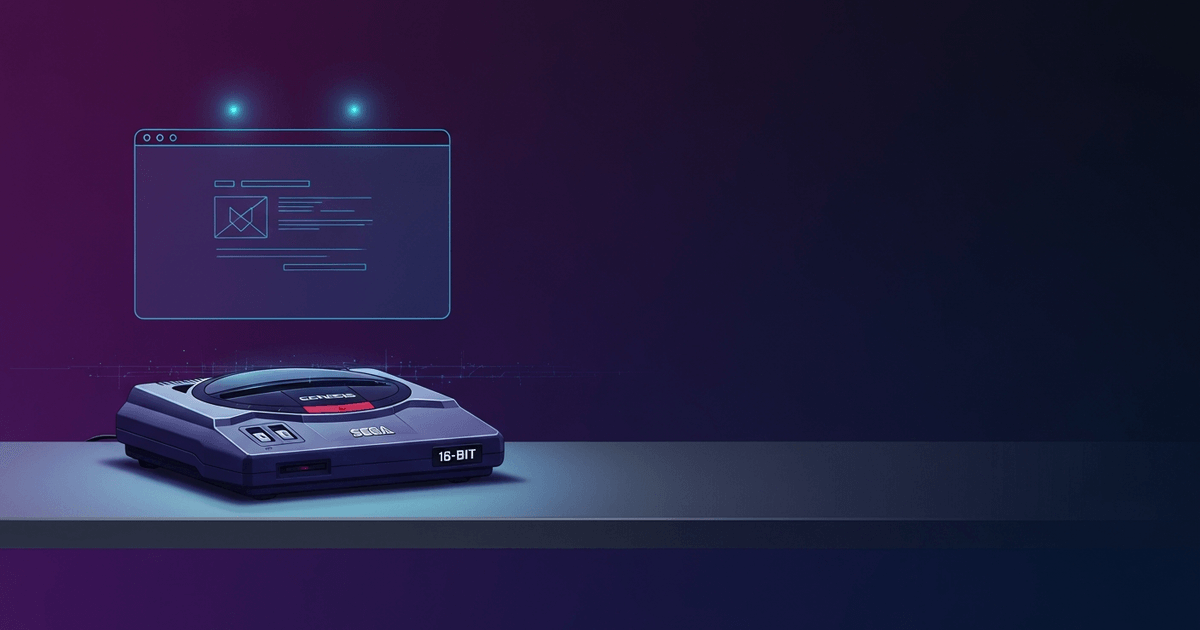
How to play Sega Genesis online — Mega Drive in your browser
Run Mega Drive games in your browser — no download, no install required.

Emulator save lost: can you recover your progress?
IndexedDB saves vanish easily. Here's what happened and what you can actually do.
Controller not working in emulator? Fix it in 5 minutes
Step-by-step fixes when your gamepad goes undetected in a browser emulator.

Is retro game emulation legal? A plain-English guide
Emulators are legal. ROMs are the gray area. Here’s how to think about it without the legalese.